 English
 Deutsch

Want to get more out of SuiteAcademy?
Become a member and get access to:
- Workshops
- Courses
- Templates
- Monthly progress calls
SuiteCRM utilizes separate modules to manage system users (those who log in) and employee records (organizational structure and details). Learn how to set up team members, establish reporting structures, and understand the limitations for scaling HR processes within the standard system.
- Create user accounts for immediate CRM access.
- Build an organizational hierarchy using the Employees module (e.g., 'Reports To').
- Understand the limitations for non-admin HR staff who need management access.
- Identify scenarios where custom modules are necessary for scaling HR integration.
Users vs. Employees in SuiteCRM
SuiteCRM allows you to manage users and employees. While this system can be used for employer branding and applicant onboarding journeys, it is generally recommended not to use the standard modules for large-scale HR or applicant processes. If you want to scale such processes, you may want to look into separate or custom modules.
The setup process begins in the Admin area with user management.
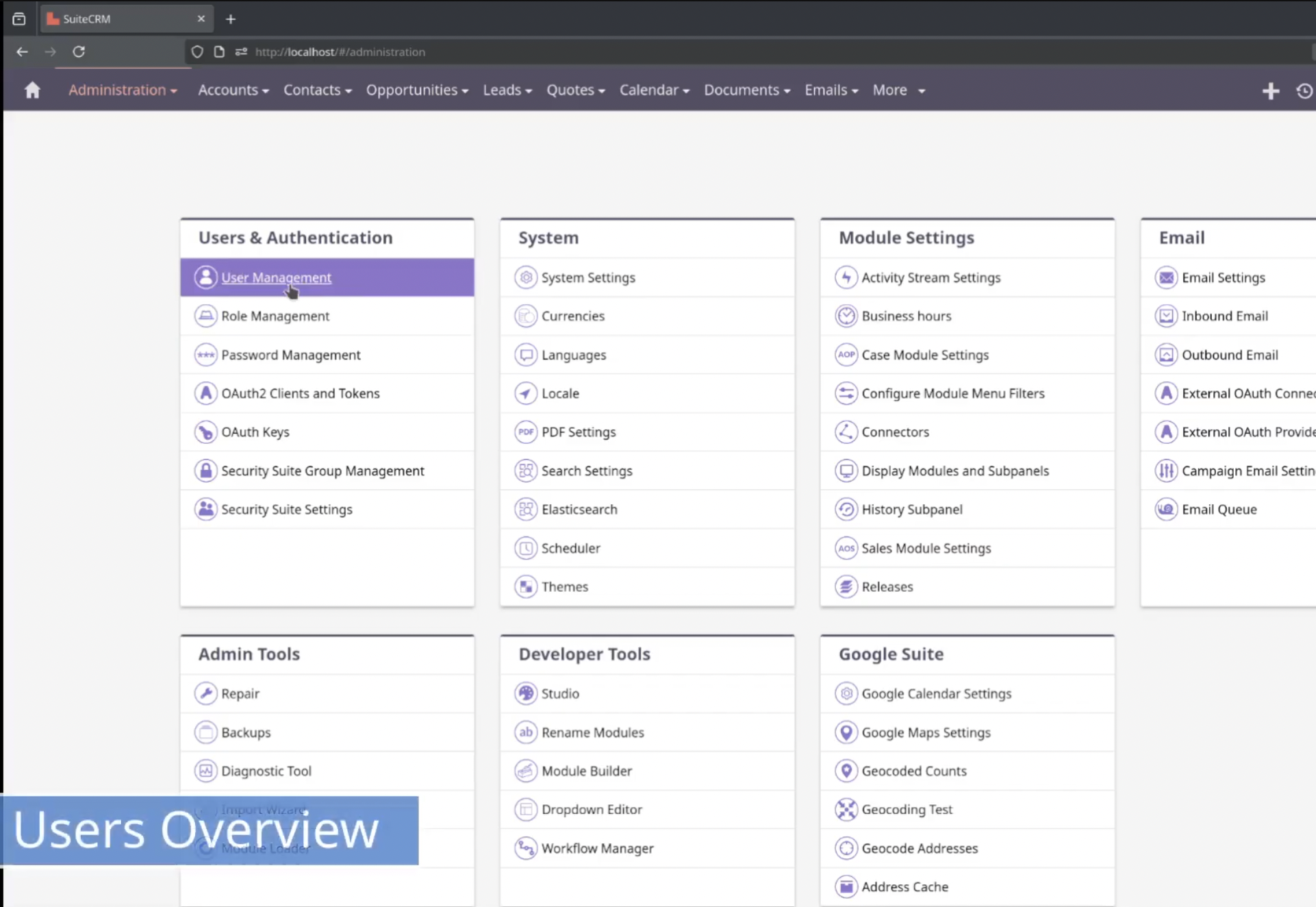
Setting Up CRM Users (Admin Area)
1. Creating the First Employee/User (CEO)
To start building the organizational structure, navigate to the Admin area. This is where you begin creating the logic or table with all the users that should later on be able to use the CRM system.
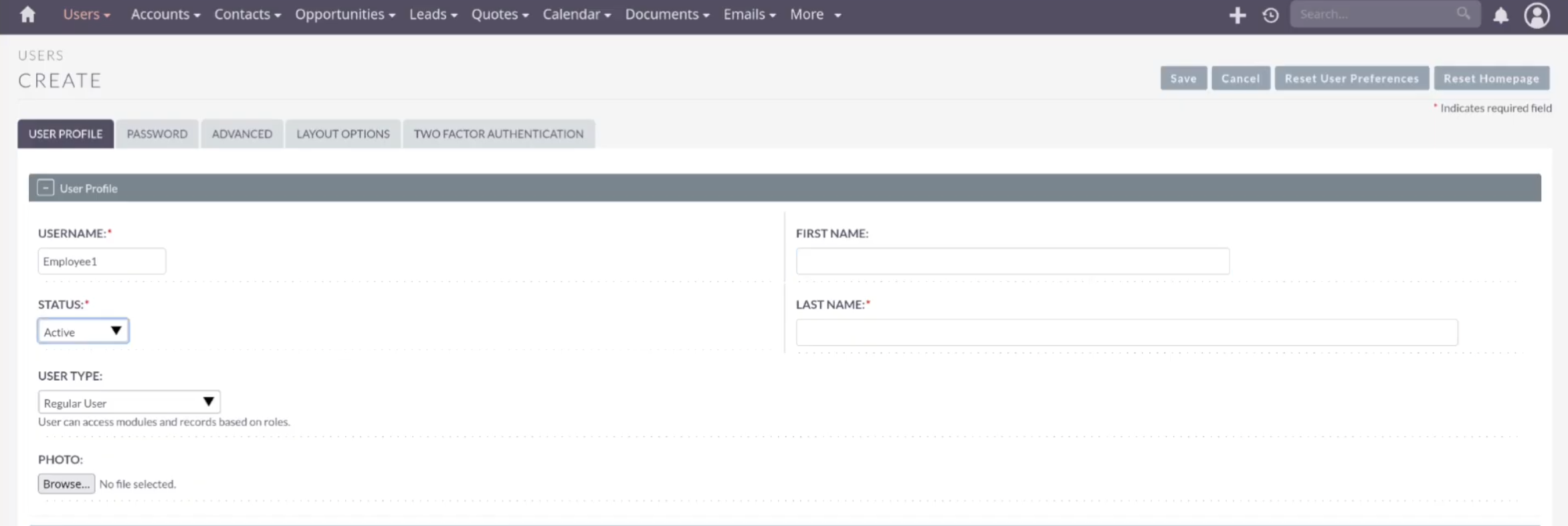
- Create the first employee record, for example, "employee one".
- Fill in details such as the job title (e.g., "CEO").
- You can fill out all the details, including the department and the work phone.
- Add a password and save the record.
2. Creating a Standard User (CMO)
- Next, you can create a second user record (e.g., "employee number two").
- Assign this user a job title, such as "Head of Marketing" or "CMO".
- Specify that this person reports directly to the CEO.
- Assign a password to enable login and save the record.
3. Initial User Login and Permissions
Once created, the CEO and CMO would be able to log in. A newly created user (e.g., Employee 2/CMO) can log in immediately and will run through the welcome onboarding wizard.
The crucial difference is that standard users (non-admins) do not have access to the Admin area. If a standard user attempts to manage employees, they will receive an "unauthorized" message from the CRM, indicating they are not allowed. This lack of access is an issue if staff working on onboarding, who should not be full SuiteCRM admin users, need to manage employee data.

Building the Organizational Hierarchy (The Employee Module)
If you switch back to the admin user, there is one more option available: the dedicated Employees module.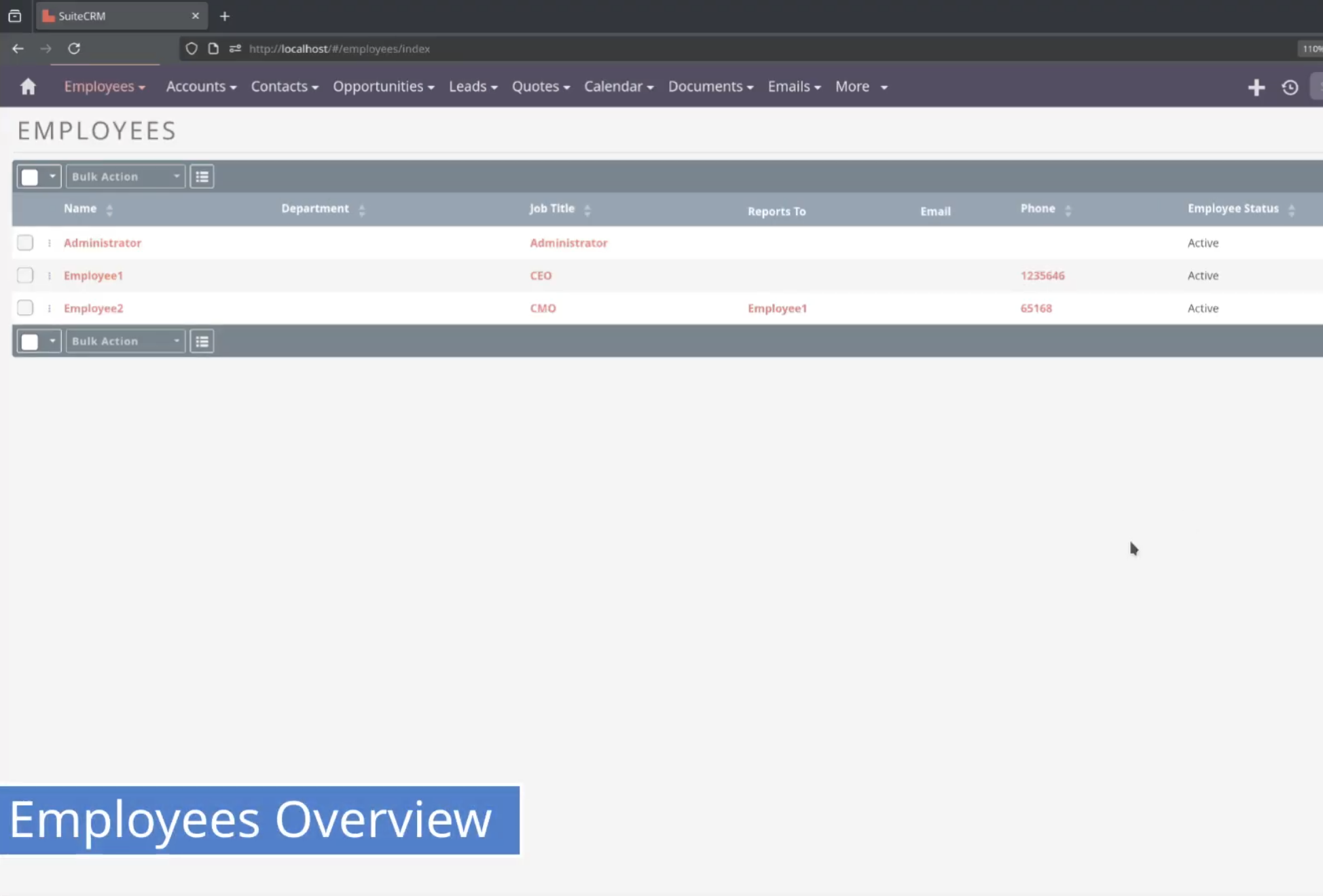
Viewing Employees
If you switch over to the Employees module, the view is similar to the User view. This view displays the employee status and the Reports To field. This is where you can build up your organizational structure or hierarchy, which can be multiple levels deep.
Defining Reporting Structures and Departments
Edit an employee (e.g., the CMO) and define their department (e.g., "Marketing Department").
Create a third employee (e.g., "Employee 3," "Marketing Manager") and define this person as reporting to the CMO. You can also fill in details like an office phone number.
Reporting Limitations
You can create reports based on who is assigned to what, or grouped by hierarchy. However, the internal system provides a standard report (rows and records), not a graphical hierarchy view. To make the hierarchy really visible, visualization requires exporting the data to external visualization or business intelligence software which can produce the reports accordingly.
Creating Employees Without CRM Access
Scenario: Employee Records for Non-Users
It is possible to create an employee without immediate CRM access if the rollout is phased. For example, if Customer Support staff will use the CRM later, you can create their employee records now.
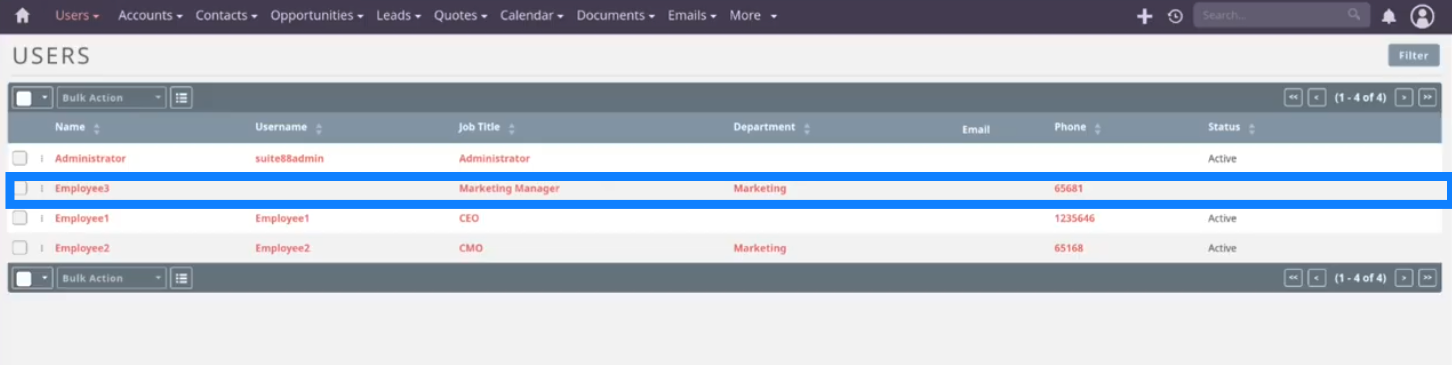
Action: When creating a new employee record (like Employee 3), if you do not fill in the username and password fields, the employee record is created, but they cannot log in.
Result: The admin can see the employee listed in the Users module, but the record shows up without a username. The admin knows that this employee doesn't have access to the CRM system.
Interconnected Editing Constraints
The system modules are interconnected. If you try to update a non-user employee (like Employee 3) via the Users module, you cannot save the changes. This is because the required fields (username, password) are empty, preventing the update from the Users module.
To update data (e.g., the telephone number) for an employee without a corresponding user account, you must update the record directly in the Employee module.
Scaling and Customization for HR Processes
The standard employee/user management works best for a simple, user-centric approach where the admin manages all users. If this is sufficient, the out-of-the-box system is fine.
The Admin Access Barrier
Requiring an Admin to manage employees is likely a "no-go" in most departments. This is because HR staff should not have full administrator privileges, as they would then be able to do everything an admin does.
Customization Need
If the standard approach is insufficient or if you need to scale the process (e.g., integrate applicant onboarding or separate HR duties), you will need to look into customization.
- Custom Module Solutions: Developers can create an internal employee module. A record is automatically created in this custom module whenever a standard employee record is created. Access can then be granted to the HR department to manage records inside this internal employee module, separate from core admin functions.
- Applicant Tracking: If you want to integrate the system with the applicant application process and onboarding journey, you will need additional custom modules for integration with web forms. These modules would receive the data and allow the HR department to work on the records to manage the applicant status within the application journey process.
Conclusion and Next Steps
SuiteCRM provides core functionality to manage both users (who log in) and employees (organizational structure). By utilizing the Admin area and the dedicated Employee module, you can efficiently build and maintain your organizational hierarchy using the "Reports To" field. However, scaling complex HR processes or granting non-admin staff access to employee management will require implementing custom modules.
