 English
 Deutsch

Want to get more out of SuiteAcademy?
Become a member and get access to:
- Workshops
- Courses
- Templates
- Monthly progress calls
Let’s look into how SuiteCRM performs on a mobile device. SuiteCRM is accessed as a web application inside your mobile browser. This article reviews its functionality and shows how to optimize the experience for working on the go. This approach has quite a few advantages, as the experience on the desktop is similar to what you have on the mobile.
Understanding the Mobile Interface
Initial Dashboard View and Challenges
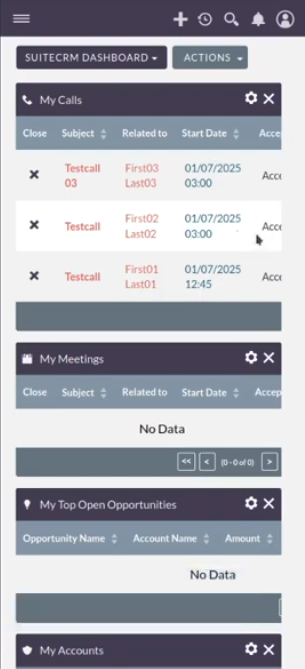
Right after logging in, the dashboard looks somewhat familiar. However, if you have tables that do not wrap or have line breaks, it could get a bit difficult to view. While you can move it horizontally, the joy of using it this way is lacking.
Optimising the Dashboard for Mobile
You can configure these dashboard elements. If you mostly have to work on mobile, you should configure your dashboard using custom reports. To ensure everything fits the mobile screen, add those reports with only two or three columns.
Navigation and Quick Access
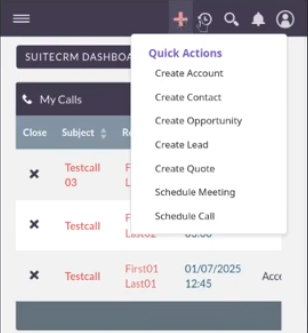
Navigation is very important on mobile. Everything seems accessible and works. You have the familiar icons here, including Quick Create, recently checked items, search, notifications, and your user profile. You would be able to go wherever you need to go.
Views
List Views
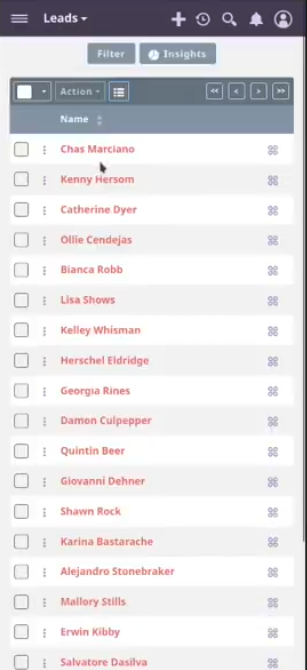
When checking out lists, such as Leads, you will notice that the Insights are not opened by default. This design choice is sensible because they consume a lot of space that you don’t have on mobile. SuiteCRM recognizes it is on mobile and adjusts the information display.
Here you have a list of the names. The list view is overall acceptable. Showing an additional column like the status, or something else, might be very handy.
Utilizing Filters on Mobile
It is still possible to use the filters here, as you know them from the desktop version. You could set up your filters specifically for mobile use. You can focus on two or three important filters that you are always working with.
Detail Views
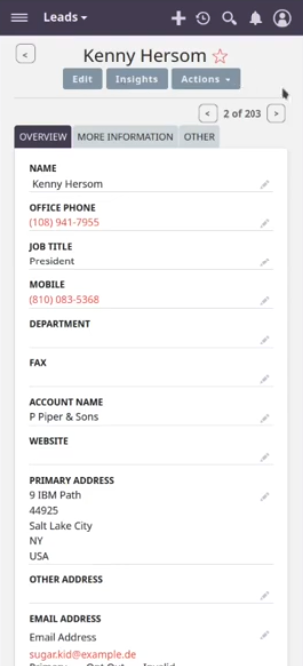
The detail view is just as you know it from the desktop view. This view contains the core data of your customers, leads, prospects, and accounts. This display looks neat.
If you are on the mobile phone and just press on a phone number, the system automatically dials for you. You have the different tabs visible. If you have been very bold with the tabs and have many fields, this could turn into an issue. Additionally, relationships and sub panels are available as well.
When you click on the Edit view, the system loads very fast. You do not have a lot of layout shift. You do not have to get used to a different layout, maintaining familiarity. You can edit the data and save it, and it seems to be fine.
Entering New Data
Entering new data is just like editing data. Therefore, that process is quite good as well, and there are no complaints.
Managing Related Subpanels
Viewing Activities and Relationships
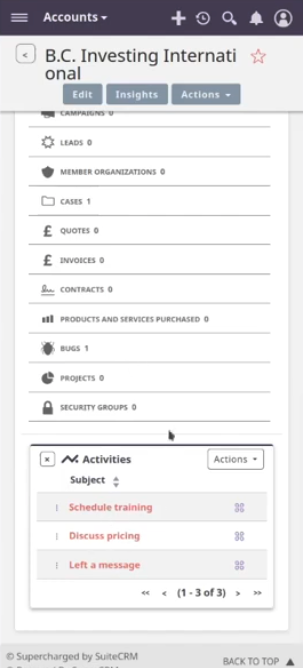
The related panels can become a bit difficult when going into modules that contain more sub panels. For example, when viewing Accounts, the system lists the total number of activities, such as three and two total. You would then be able to see them listed there.
Hiding Subpanels
There is a solution for managing crowded views: you can simply hide the sub panels. The only issue here is that you will only see the total listed from the topmost sub panel. If you want to see others, you can scroll down. You must configure how you want to see your accounts or whichever module you are working on mostly if you are on mobile.
Final Assessment of Mobile Experience
Experience vs. Native Apps
SuiteCRM is accessed as a web application inside the mobile browser. This approach avoids maintaining separate Android and iOS apps, which require a dedicated app team and superior performance. The experience you have on the desktop is similar to the experience you get on mobile.
SuiteCRM did a good job of accompanying both desktop and mobile use. In order to have most features available in quite a neat fashion, they offer a very nice view mobile-wise.
Suitability
Overall, the experience is neat and acceptable compared to some other alternatives. Most features are available in a neat fashion. Depending on what you want to do and how your mobile business case looks, you might just get along with this way of accessing your CRM system.
