 English
 Deutsch

Wollen Sie mehr von Suite.Academy?
Erhalten Sie Zugriff zu:
- Workshops
- Kursen
- Vorlagen
- Monatliche Q&A Meetings
While the standard SuiteCRM contact record only allows linking to a single account, there are special circumstances such as an external consultant or simultaneous employment where one person needs to be associated with two different company records. This tutorial provides the necessary "back door" workaround using the Account relationship sub-panel and explains how to manage the resulting visual duplication in your contact list.
- Addresses the limitation of the single Account Name field on contact records.
- Provides a necessary workaround for linking one contact to multiple accounts.
- Explains the cause of visual duplicates in the contact list view.
- Offers strong recommendations on when to use this workaround versus creating a standard contact duplicate.
Understanding the Core Conflict: Single Contact vs. Multiple Accounts
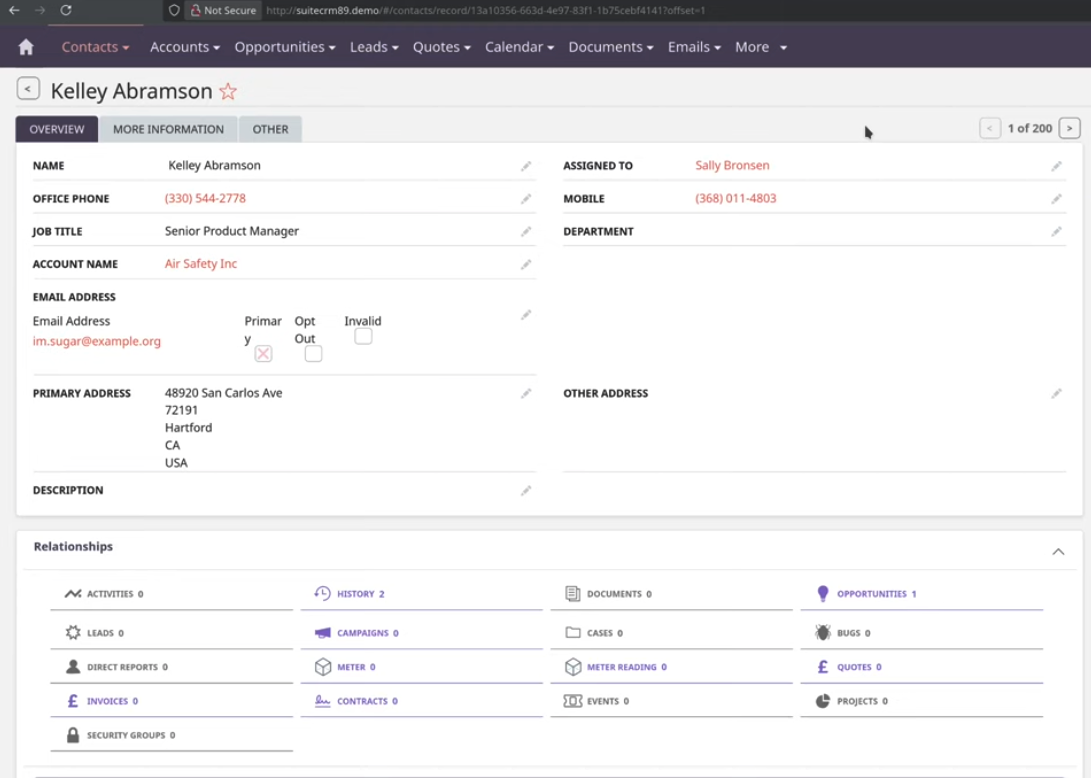
In the standard SuiteCRM structure, the Account Name field on the Contact record is a single-select field. This means a contact record, such as Kelly Abramson, can only officially show one company, even if they are known to work for two. For example, Kelly Abramson is shown as working in Air Safety Inc., and you do not have a multi-select option to choose between companies.
While rare, the situation of one person working for two companies at the same time does occur, especially with external consultants. This can become an issue if the person is external and does not have emails from the company email itself, leading to the situation where one external person is working for two different companies.
When a person changes from one company to another, they might exist two times in one CRM system but with two different email addresses; in this case, the context and role change, making the duplicate as a person less important, and a duplicate email address does not exist.
The Workaround: Linking a Contact to Multiple Accounts via the Account Record
Since you cannot use a multi-select field on the Contact record itself, and you cannot perform the multi-link from the contacts view, you must establish the secondary relationship from the Account module. This process uses a "back door" in SuiteCRM.
- Identify the Secondary Account: Navigate to the Account module and select the secondary company (e.g., Chantler Logistics) that the contact is working for.
- Access the Contacts Sub-panel: Scroll down to the Contacts sub-panel on the Account record.
- Link the Existing Contact: Use the Select or Link function within the sub-panel to link the existing contact record (e.g., Kelly Abramson) to this secondary account.
- Confirm the Relationship: The contact is now connected to both accounts, even though the primary Account Name field on the contact record still only displays one company name. This approach is not necessarily how you are supposed to use the CRM system, but it works to show that it is possible.
Understanding the Result: The Visual Duplicate Issue
Although this workaround successfully connects the single contact record to two accounts, it results in a "visual duplicate" in the overall Contacts list view.
Why the Same ID Appears Twice
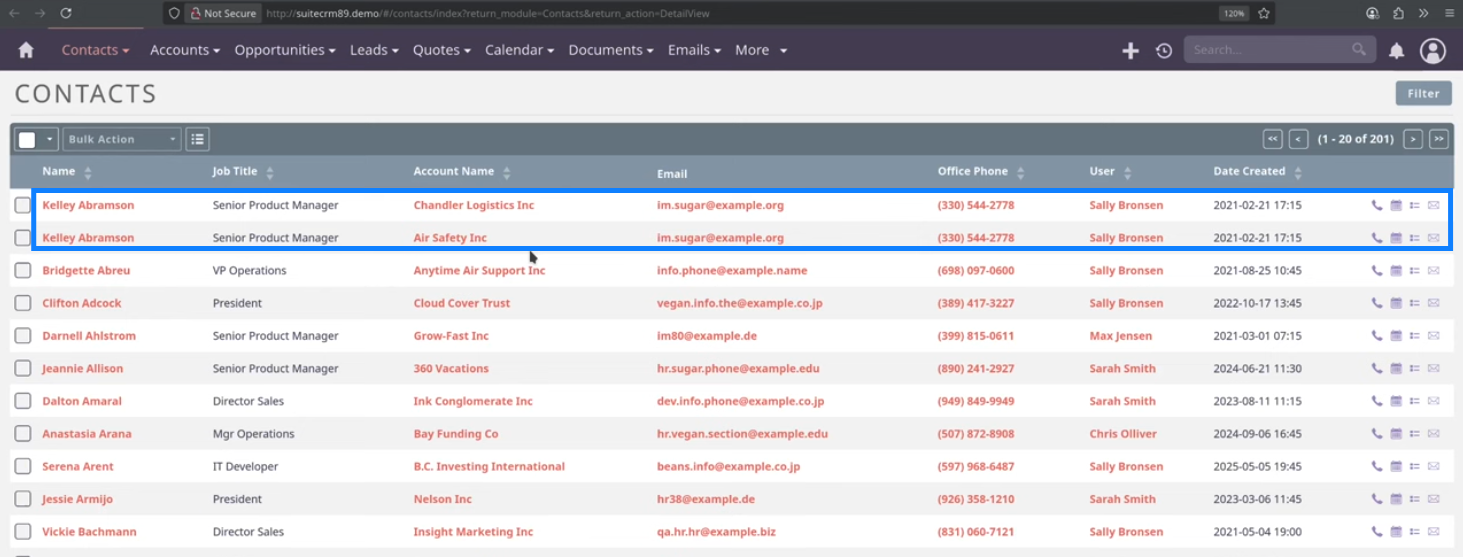
When viewing the general Contacts overview, the system performs a database join between the contacts and their associated accounts. Because the single contact record (which has a single unique ID) is now linked to two accounts (one relationship existed already, and the second was added), the system returns two rows for that same contact in the list view.
- This is a "visual duplicate" that does not truly exist as a duplicate record; it is not a data cleaning issue.
- If you open both "duplicate" entries, you will see they share the exact same ID (e.g., ID 13A).
The Display Conflict in the Contact Record
If you look at the contacts overview, you will see the same contact (e.g., Kelly Abramson) listed twice with the same email address and telephone numbers, but with different account names. This is the result or view of the join that happens underneath the CRM system inside the database. The system can only display one company name in the primary Account Name field on the contact detail view. This field will display one account over the other depending on which ID is prioritized in the database join. For instance, one entry might show Air Safety Inc. while the duplicate shows Chantler Logistics.
Best Practice: When to Create a True Contact Duplicate
If it should be the case for you that you need to have one person with the exact same contact information (same email address and same phone number) working in two different companies, you can proceed with the multi-account linking workaround. However, a duplicate contact record is often the better solution.
- Create Duplicates When Context Changes: If the person changes companies, or if their role, email address, or phone number changes between the two jobs, it is strongly suggested to create a separate contact record.
- Indicators for Duplicates: Email addresses and phone numbers are very strong indicators for unique records. If these details differ, creating two contacts avoids potential confusion and makes a duplicate seem like a valid case.
- Tracking History: For further tracking, a mapping module or custom field could be added to track the person's status or role within each company. This allows you to document when they left Company A and are now working in Company B, which again supports the case for using duplicates.
You should strongly suggest looking into duplicates and avoiding them where you can. You must check it out, test around, and see what fits and works for your specific circumstances.
