 English
 Deutsch

Wollen Sie mehr von Suite.Academy?
Erhalten Sie Zugriff zu:
- Workshops
- Kursen
- Vorlagen
- Monatliche Q&A Meetings
Why Use the SuiteCRM Calendar?
SuiteCRM has a calendar feature that you can use to track activities. The calendar feature, which is part of the calendar module inside SuiteCRM, displays activities stored or tracked around a contact. Since the data is already available in the CRM system, you can choose to use the calendar view as a useful, central visualization tool.
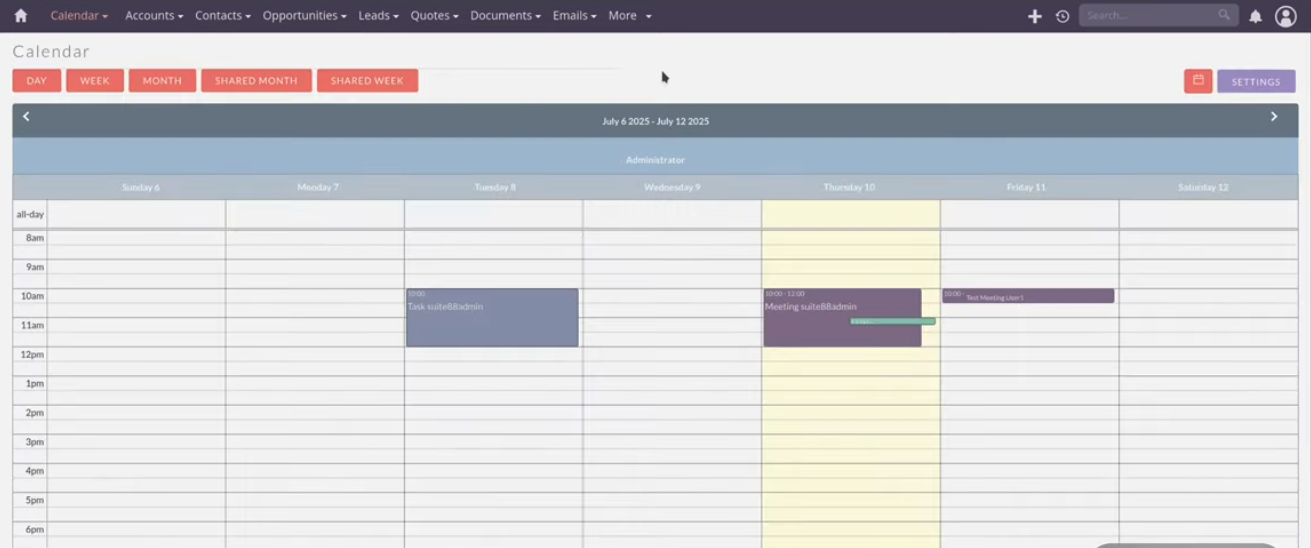
Navigating Basic and Shared Calendar Views
The standard calendar includes common display options, such as Day View, Week View, and Month View.
Utilizing Shared Calendar Views
There are special views called Shared Month and Shared Week. These views allow you to see the calendars of multiple users simultaneously.
If you switch to the shared view, you can select whose calendars you want to see from the user list. The view lists all selected users. This function makes it clear when multiple users are invited to the same event, such as a "test meeting".
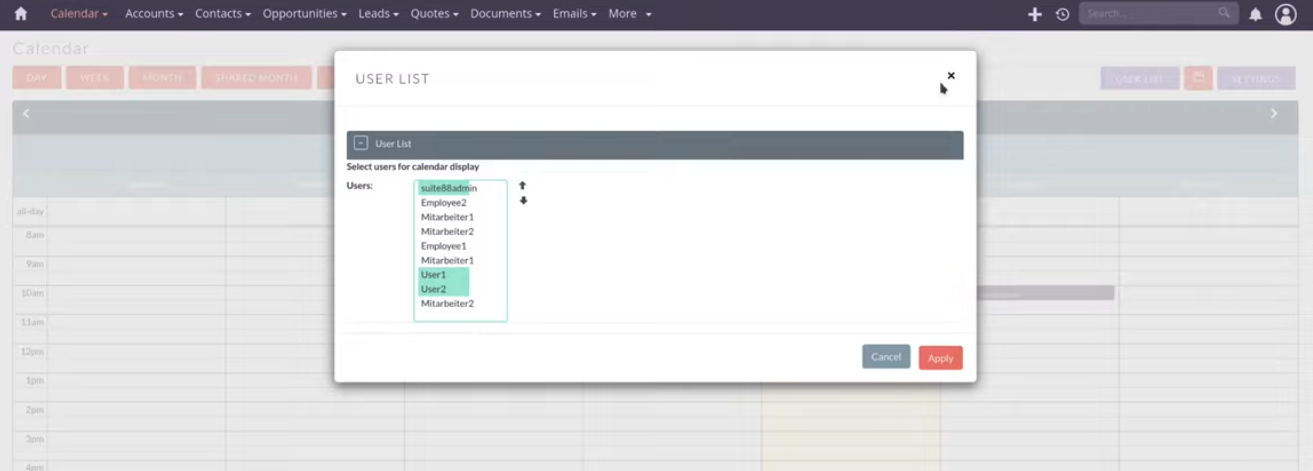
Configuring Shared Display Settings
You can adjust how the shared views appear. If you click on "Apply," you can choose not to separate the shared calendars. This particular setting squeezes all activities into a single column. For viewing overlapping activities, the Shared Month view might be easier on the eye.
Customizing Display and Visibility
You can configure several settings to adjust how the calendar looks and what data is visible.
Adjusting Appearance
You can adjust the colors of the calendar elements. If the contrast is not high enough, you have the option to make an event darker or the font more light.
Managing Time Slots
You can choose whether to display time slots in the Day and Week views. Time slots represent the start and end time of an activity.
It is important to be careful about this setting. If you create a task for the whole day but forget to set the hours (keeping them at the default 00:00), it will not be displayed if you are only showing time slots (e.g., 8:00 to 9:00).
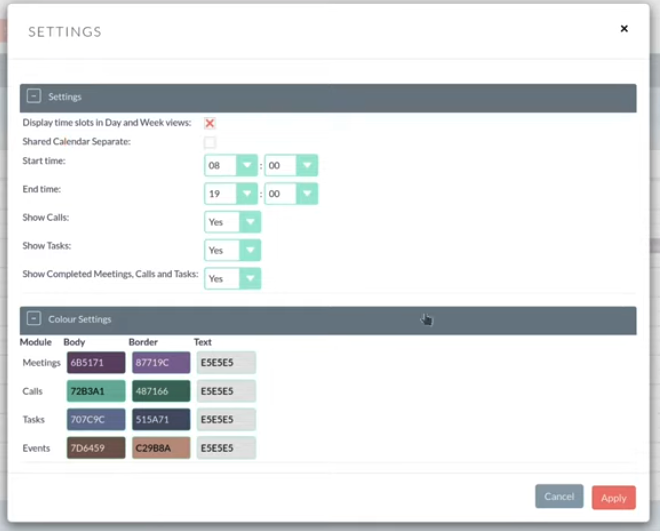
Filtering Activity Types and Past Events
You can control which activities are visible.
- You can choose to show only Meetings if you have plenty of them, or you can enable Calls and Tasks.
- You can also choose whether to keep past events visible or hide them. By clicking "apply," all events from the past can be hidden. You can show them again by switching the setting back.
Quick Editing Activities
When viewing the calendar, you can interact with the activities and plan for the next month by switching the view forward.
- You can use the popup feature to click on the Contact or the Meeting itself.
- The Meeting detail view can be accessed via the title or the "I" icon.
- For calls, you can use the pencil icon to edit the record directly.
Integration Context
If you are already tracking data inside your CRM, such as using VoIP integration to log calls automatically, the calendar provides a visual display of this data.
Meetings are useful in the calendar because you can invite other team members. While the calendar is a neat feature, and technically, it is "totally fine" to work with, if you are already using external calendars like Teams or Google calendars, you may not need the internal CRM calendar as much.
Conclusion and Next Steps
The SuiteCRM calendar module offers powerful features for organizing and visualizing team activities, particularly through its shared views and customization options for display and filtering. Take advantage of the quick editing features to keep your activity statuses current directly from the visual interface.
